

Texture Reconstruction
Use texture reconstruction to keep the workflow result intentional, readable, and aligned with the final use case.
Prompt Guide
Model
Reference Image

Remove an unwanted object from a photo and rebuild the surrounding texture, lighting, reflections, and shadows for a clean result. Start with a finished visual direction instead of an empty prompt box, then refine one choice at a time.
Remove an Object
Move from a clear starting direction to a reviewed result in three focused steps.
Pick one of four remove object from photo presets or describe one focused outcome in your own words.
Define the subject, style, composition, lighting, and details that must remain unchanged.
Check faces, hands, geometry, edges, continuity, and artifacts. Change one variable at a time for the next result.
Six distinct directions complement the Workspace presets without reusing any media.
 Portraits
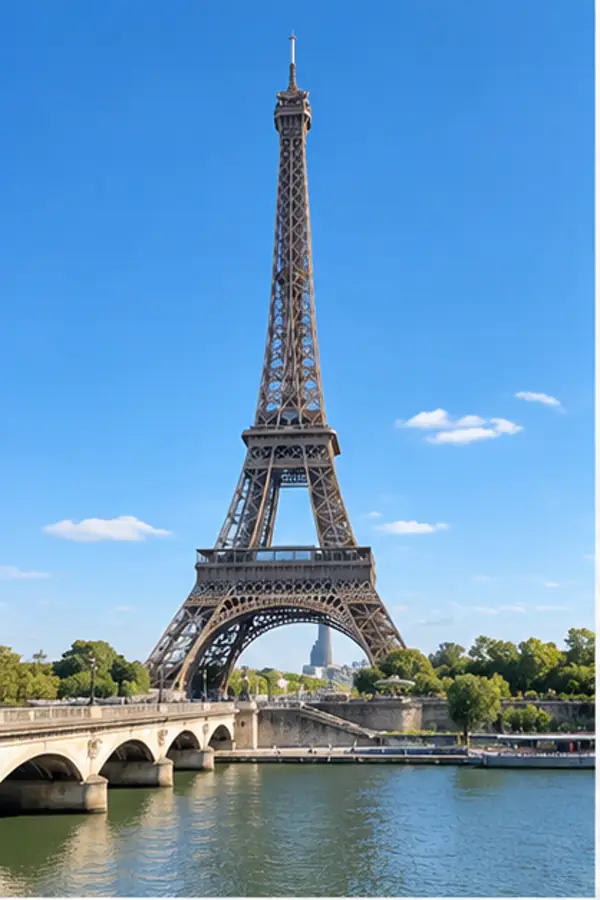
2:3 vertical AI-generated result: Clean Landmark. Clear subject, polished composition, no readable text, no logo, no watermark.
Try This Direction Editorial
2:3 vertical AI-generated result: Clean Portrait. Clear subject, polished composition, no readable text, no logo, no watermark.
Try This Direction Lifestyle
2:3 vertical AI-generated result: Restored Food Table. Clear subject, polished composition, no readable text, no logo, no watermark.
Try This Direction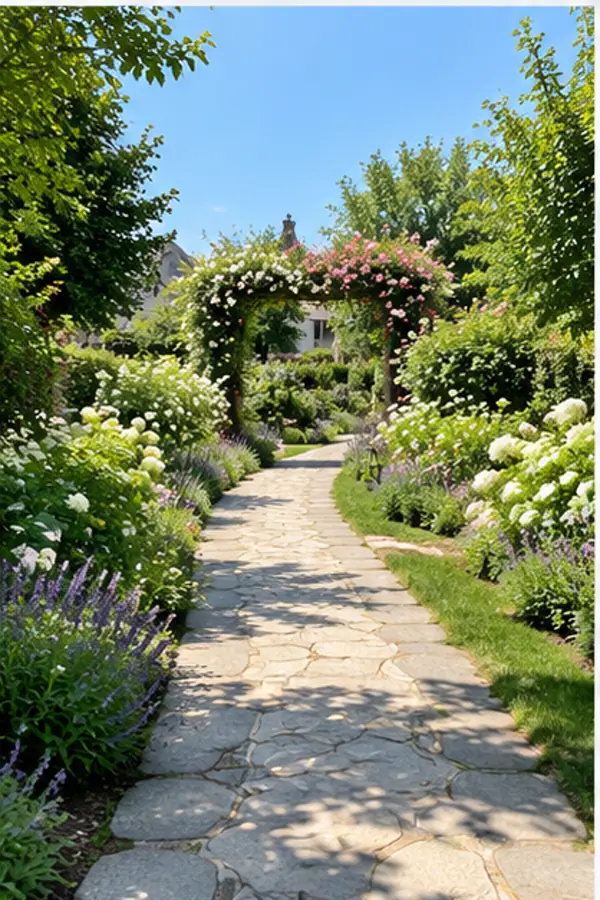 Portraits
2:3 vertical AI-generated result: Clean Garden Path. Clear subject, polished composition, no readable text, no logo, no watermark.
Try This Direction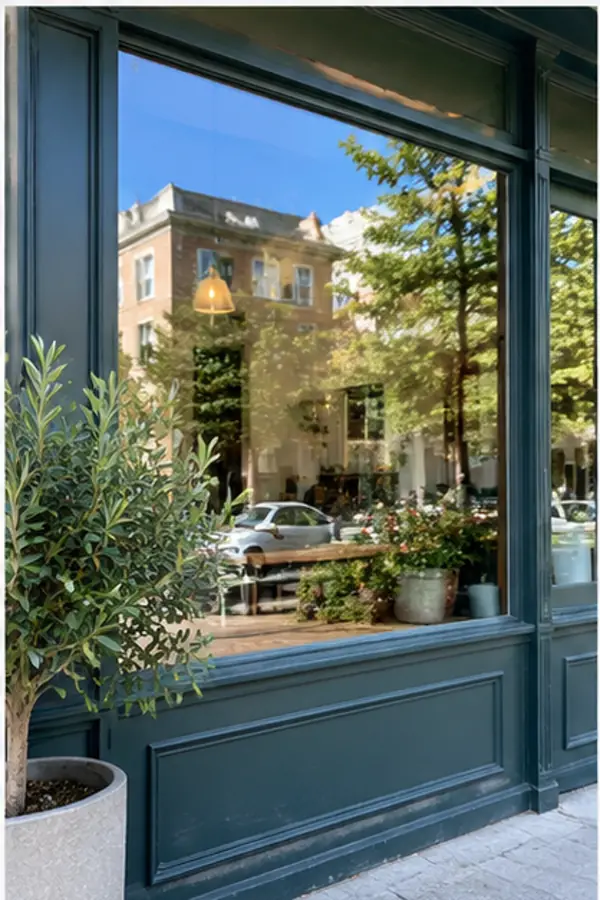 Editorial
2:3 vertical AI-generated result: Restored Storefront. Clear subject, polished composition, no readable text, no logo, no watermark.
Try This Direction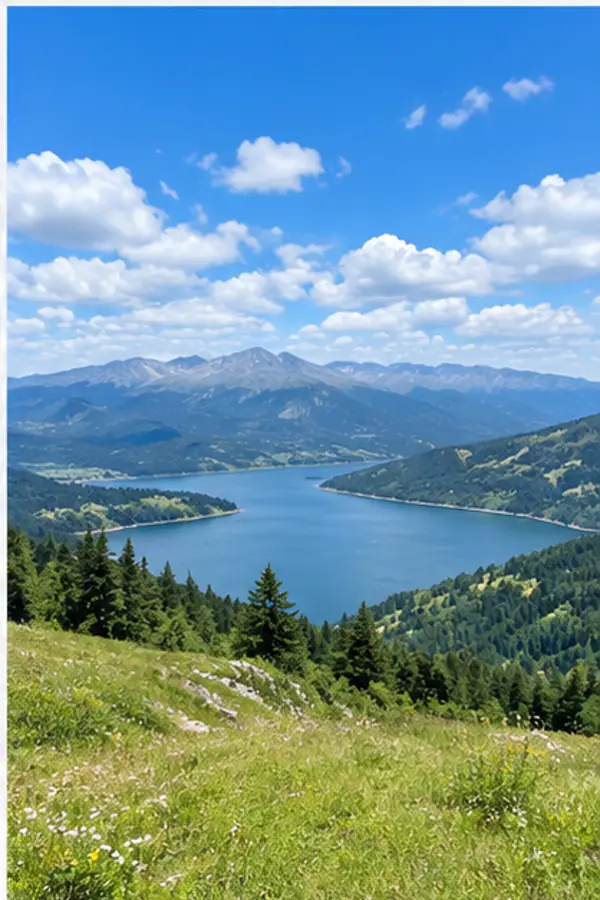 Lifestyle
2:3 vertical AI-generated result: Clean Landscape. Clear subject, polished composition, no readable text, no logo, no watermark.
Try This DirectionSpecific controls and review habits for a more useful result.
Use texture reconstruction to keep the workflow result intentional, readable, and aligned with the final use case.
Use natural shadow repair to keep the workflow result intentional, readable, and aligned with the final use case.
Use portrait-safe cleanup to keep the workflow result intentional, readable, and aligned with the final use case.
Use reflection-aware edits to keep the workflow result intentional, readable, and aligned with the final use case.
Use several image models to keep the workflow result intentional, readable, and aligned with the final use case.
Use full-size review to keep the workflow result intentional, readable, and aligned with the final use case.
Fictional names are used for scenario-based product feedback.
The remove object from photo presets helped me choose a clear direction before I refined the prompt.
I could compare distinct remove object from photo examples without seeing the same asset repeated in the workspace.
The review steps made it easier to catch visual artifacts before I used the final remove object from photo result.
Remove an unwanted object from a photo and rebuild the surrounding texture, lighting, reflections, and shadows for a clean result.
Yes. Use an example as visual direction, then rewrite the subject, setting, style, and composition so the result fits your own project.
Shorten the request to one main subject and one action, state the camera or crop, and change one detail per new generation.
Trial availability and credit requirements depend on the selected image model and account. Check the workspace before generating.
Use media you own or have permission to edit, and review the complete result before sharing it.