

Natural Texture Repair
Use natural texture repair to keep the result specific, readable, and aligned with your intended workflow.
Remove unwanted captions, labels, and text from an image while rebuilding surrounding texture with a focused AI editing workflow.
Remove Text from an Image
Prompt Guide
Model
Reference Image
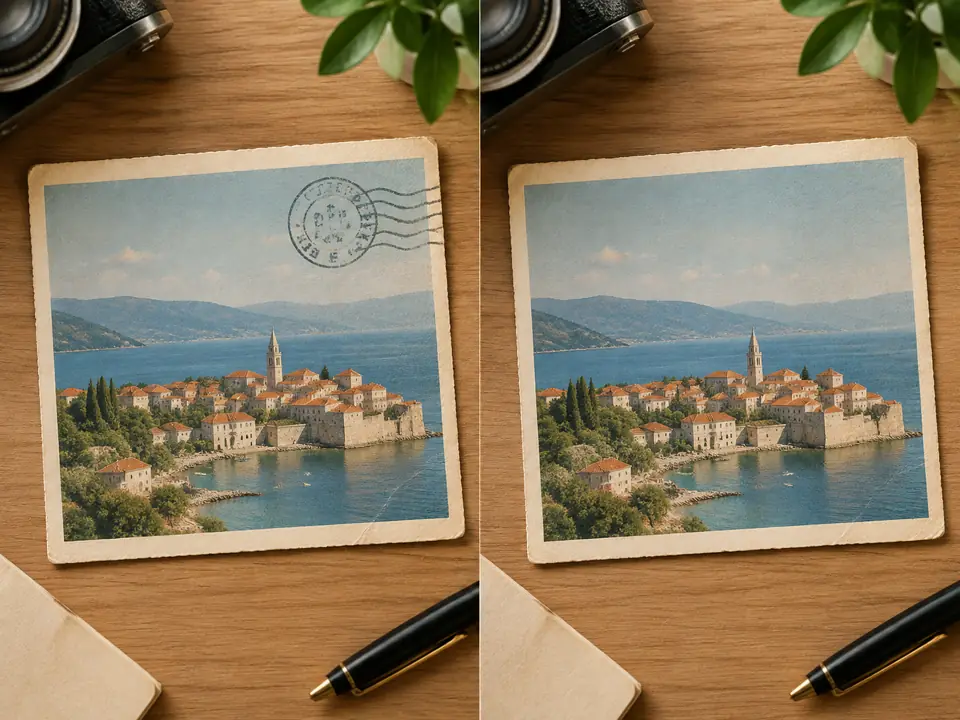
Start with one clear goal, review the result, then refine one detail at a time.
Pick one of the four AI Remove Text from Image workspace presets or write a focused request.
Describe the subject, content, style, composition, and anything that must remain unchanged.
Check the full result for accuracy and artifacts, then change one detail at a time.
Six distinct directions show the range without repeating Workspace media.
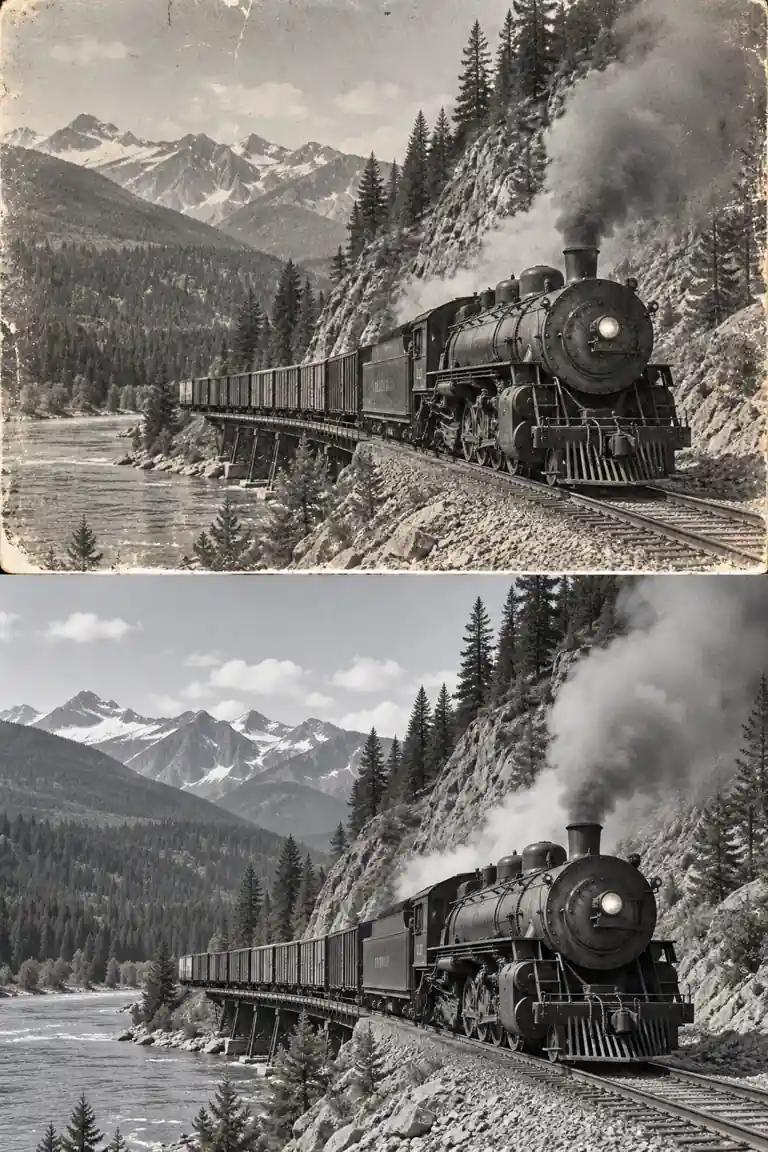 Editorial
2:3 vertical AI Remove Text from Image concept: Railway Date Stamp. Clear composition, professional detail, no readable text, no logo, no watermark.
Try This Direction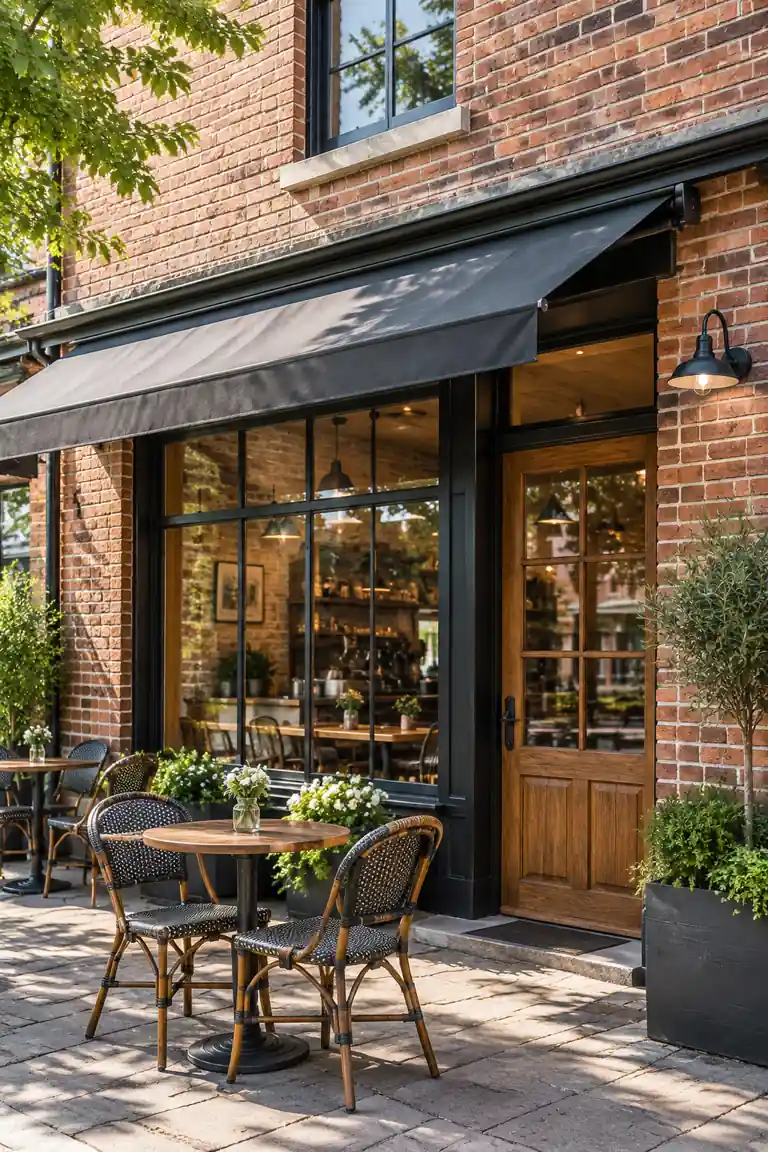 Creative
2:3 vertical AI Remove Text from Image concept: Cafe Wall Sign. Clear composition, professional detail, no readable text, no logo, no watermark.
Try This Direction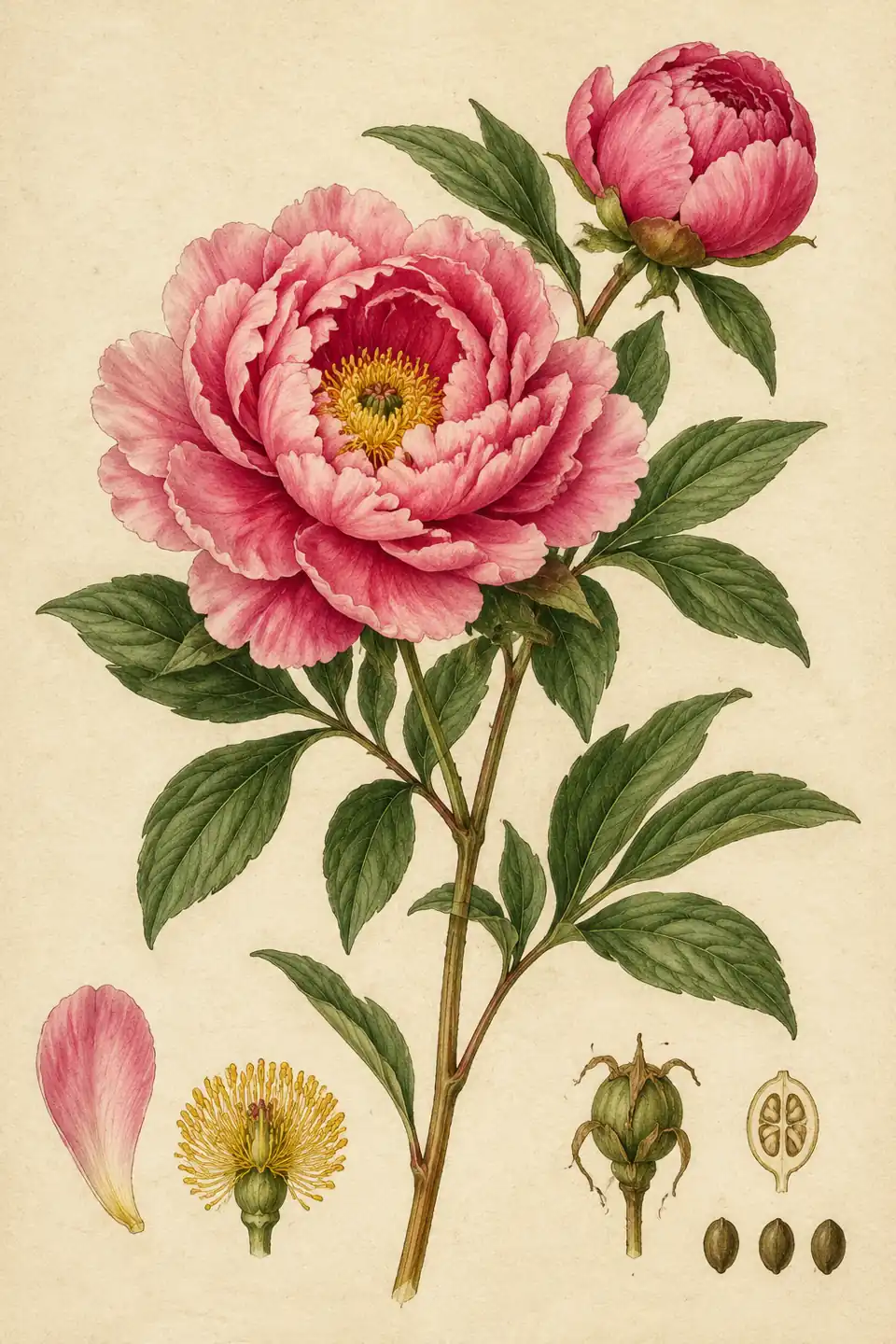 Practical
2:3 vertical AI Remove Text from Image concept: Botanical Archive. Clear composition, professional detail, no readable text, no logo, no watermark.
Try This Direction Editorial
2:3 vertical AI Remove Text from Image concept: Street Portrait Cleanup. Clear composition, professional detail, no readable text, no logo, no watermark.
Try This Direction Creative
2:3 vertical AI Remove Text from Image concept: Minimal Poster Cleanup. Clear composition, professional detail, no readable text, no logo, no watermark.
Try This Direction Practical
2:3 vertical AI Remove Text from Image concept: Beach Label Removal. Clear composition, professional detail, no readable text, no logo, no watermark.
Try This DirectionFocused controls and clear review steps for practical results.
Use natural texture repair to keep the result specific, readable, and aligned with your intended workflow.
Use object-aware cleanup to keep the result specific, readable, and aligned with your intended workflow.
Use portrait-safe edges to keep the result specific, readable, and aligned with your intended workflow.
Use archive-friendly results to keep the result specific, readable, and aligned with your intended workflow.
Use several image models to keep the result specific, readable, and aligned with your intended workflow.
Use before-use review to keep the result specific, readable, and aligned with your intended workflow.
Fictional scenarios for planning, not verified customer endorsements.
Illustrative scenario: AI Remove Text from Image made it easier to compare distinct directions before refining the final brief.
Illustrative scenario: the preset structure kept the subject, composition, and output goal clear.
Illustrative scenario: reviewing one detail at a time helped catch artifacts before reuse.
Remove unwanted captions, labels, and text from an image while rebuilding surrounding texture with a focused AI editing workflow.
State the main subject or document goal first, then add the style, composition, important details, and exclusions.
Use only files you own or are authorized to edit, and check the selected model for current reference-input support.
Trial availability, credits, and access vary by account and model. Check the current workspace before generating.
Check accuracy, anatomy or document structure, unintended text, logos, artifacts, and whether the output fits your intended use.